Sabtu, 06 Oktober 2012

Photoshop tutorial:A Guide to Guides 09: Altering Color & Lighting, Converting Grayscale, Black & White Effects Tutorials for altering the color and lighting of a photo for creative effects and adding drama or interest. Includes techniques for colorizing, monochrome tinting, sepia toning, creating duotones, converting to black & white, and other manipulated color and light effects. Convert Color Photos to Black and White with Photoshop – Video There’s something special about the classic look of black and white photos. Learn how to convert your color pictures into black and white using Adobe Photoshop. Adobe Photoshop Photo Filter [Video Tutorial] It’s all too common for our photos to seem great if not for an unflattering yellow, green, or other tint. With Adobe Photoshop’s Photo Filter, you can adjust the color of your digital pictures, reconciling them with the memories they document. Adobe Photoshop Sepia Effect [Video Tutorial] There’s a quaint and beautiful look to older, black-and-white photos. With Adobe Photoshop, you can mimic that sepia-toned, antiqued appearance for your images in just a few easy steps. How To Apply a Sepia Tone to a Photo Step-by-step instructions for tinting a photo with a sepia tone in Photoshop. Coloring Photos One technique for adding color to faded or grayscale photos. Uses quick mask mode and adjustment layers. Full Moon Apply mighty night visions to your daylight pics. Light Rays in Adobe Photoshop CS “You want to create a stained glass effect in Photoshop, but the built-in Stained Glass filter doesn’t exactly produce the sophisticated look you’re going for. Maybe you want a little more detail in the glass segments in the effect; maybe you want light rays streaming through the glass.” Luminosity Masks and Sepia Toning This two-part tutorial discusses luminosity masks and how they can help produce handsome sepia tones. Sepia Toning In photo work, it seems as if we are always trying to make the old new again, and the new old. In this tutorial, we will give that 1895 sepia look to a new photo.


Altering Color & Lighting, Converting Grayscale, Black & White Effects

Tutorials for altering the color and lighting of a photo for creative effects and adding drama or interest. Includes techniques for colorizing, monochrome tinting, sepia toning, creating duotones, converting to black & white, and other manipulated color and light effects.
Convert Color Photos to Black and White with Photoshop – Video
There’s something special about the classic look of black and white photos. Learn how to convert your color pictures into black and white using Adobe Photoshop.
Adobe Photoshop Photo Filter
[Video Tutorial] It’s all too common for our photos to seem great if not for an unflattering yellow, green, or other tint. With Adobe Photoshop’s Photo Filter, you can adjust the color of your digital pictures, reconciling them with the memories they document.
Adobe Photoshop Sepia Effect
[Video Tutorial] There’s a quaint and beautiful look to older, black-and-white photos. With Adobe Photoshop, you can mimic that sepia-toned, antiqued appearance for your images in just a few easy steps.
How To Apply a Sepia Tone to a Photo
Step-by-step instructions for tinting a photo with a sepia tone in Photoshop.
Coloring Photos
One technique for adding color to faded or grayscale photos. Uses quick mask mode and adjustment layers.
Full Moon
Apply mighty night visions to your daylight pics.
Light Rays in Adobe Photoshop CS
“You want to create a stained glass effect in Photoshop, but the built-in Stained Glass filter doesn’t exactly produce the sophisticated look you’re going for. Maybe you want a little more detail in the glass segments in the effect; maybe you want light rays streaming through the glass.”
Luminosity Masks and Sepia Toning
This two-part tutorial discusses luminosity masks and how they can help produce handsome sepia tones.
Sepia Toning
In photo work, it seems as if we are always trying to make the old new again, and the new old. In this tutorial, we will give that 1895 sepia look to a new photo.

Sabtu, 15 September 2012

Installing Netgear DM111PSP ADSL2 Modem

How to: Manually install a Netgear DSL modem, model ADSL2 DM111PSP

Manually setting up this router is relatively straight forward and simple and you will not need the router's CD. Setup takes less than 10 minutes and this is the recommended steps.  Almost all DSL and Cable Modems follow similar steps.  Use these instructions for new or re-configured routers.

Related article:
Keyliner: Linksys EA2700 Wireless Router - First Time Setup


Basic Setup

1.  Obtain DSL Login credentials

You will need your DSL login account credentials from when the DSL line was first installed.  This is not your computer's login or any other login that you would normally type and you may need to tunnel into your filing cabinets to find it.  If misplaced, contact your ISP.

ATT 877.722.3755
Century Link / Qwest: 877.348.9005 or 888.777.9569
Verizon 800.567.6789

For other ISP's, please leave a comment so I can update this list.

2.  Discover DSL Type

DSL comes in two incompatible flavors.  A slightly older, but still commonly used in America, "ADSL," which is what this article describes, and a newer version is called "VDSL." 

Unfortunately, at least according to Century Link (Qwest), the customer cannot tell which they have and you may need to contact your DSL provider.  In general, ADSL is probably a safe assumption and this article assumes you bought a Netgear ADSL modem.  However, with this said, I know my circuit is ADSL, but a friend's house, 20 miles from mine turned out to be a VDSL and this modem would not work at that location; the two technologies are incompatible.  This took several days to resolve and was frustrating.  See diagnostics at the end of this article.

3.  Connect the DSL, as illustrated


Wiring Notes:
  • Connect a standard "silver satin" flat phone cable (RJ-11) from the wall-jack directly to the modem.  Do not use a DSL filter on this line. 
     
  • If you also need a voice telephone on the same connection, use the RJ-11 Y-adapter that came with the router.  If you are using a different brand router, you may need to buy a separate Y-adapter and place the DSL filter on the telephone-side.
     
  • Temporarily connect a standard RJ-45 network cable (yellow) directly to a PC or laptop.  You cannot use a wireless connection for this setup; it must be hard-wired.
Comment: Technically, you can configure the modem without being connected to the DSL circuit, only needing the RJ-45 network connection to a computer.  Once configured, you can move the modem to it's final resting place. 


4.  Power-up the modem
 

a.  Plug in the power-adapter
b.  Press the black button (round, black button, back-side of router)

5.  Reboot the attached computer to get a new IP Address

6.  Confirm LED status

Power (top icon) = Green
Ethernet (second icon) =Solid or blinking green
DSL (third icon) = Green

7.  Start a browser session

From the PC, launch a browser and connect to this IP Address:

Connect to URL:  192.168.0.1
UserName:  admin
Password:  "password"   (* this is default, factory value, which will be changed in a moment)

7a.  On launch, cancel the modem's firmware update check because it won't work yet.  It will be manually restarted later. 


8.  Configure Software settings:

In "Basic Settings," on the left-nav, make these changes:


a.  set Encapsulation to its default setting.  Likely PPPoE, per your DSL vendor's recommendation.
b.  Select (*) Yes on "Does your Internet Connection require a Login"
c.  Type the DSL credentials recorded in step 1.  The password is case-sensitive.

d.  Check (*) Get IP Address Dynamically from ISP  (typical)
e.  Check (*) Enable NAT
f.  Click Apply and Test.

In ADSL Settings, accept the defaults, which are documented here:
Multiplexing Method = LLC-Based, VPI=0, VCI=32, DSL Mode=Auto(Multimode)

9.  Change the router's default password
  • Click left-nav "Set Password" and change the password from "password" to one of your choosing.  I like to use "bratwurst sausage9"
  • Write password and tape to side of the router or use checklist, below
  • You may be prompted to re-authenticate

10. Allow an update to the BIOS.

Now that the DSL credentials are in place, allow the router to look for a Bios/Firmware update.  As of 2012.09, this Netgear modem did not have an update, but it does not hurt to look.  Follow these steps:

a.  Close the browser session
b.  Re-launch browser, re-connect to 192.168.0.1.  Authenticate with your new credentials.
c.  Allow Firmware check / update to run

If new firmware/bios is found, it will download to your local PC. 
On left-nav "Router Upgrade," browse to this file and follow on-screen prompts to upgrade.
Periodically, once every 6 months to a year, check for firmware updates.


11.  Record Keeping

It is embarrassing and painful to lose your router's configuration.
Write this information in a safe place because if the Internet is down, you can't exactly jump on the net to find your contact information.  Don't wait to do this because you will forget.

ISP Name: ______________________________________________

ISP Technical Support Number: _____________________________

DSL Login Credentials: _____________ / Password _____________

DSL/ISP Account Number: _________________________________
(Often your home phone number.  If no home phone, they will provide a separate account number)

Modem Model Number: ____________________________________

Modem IP Address:  192.168.0.1 ____________________________

Downstream Wireless Router IP Address:  _____________________
(Optional, if you have a separate Wireless router; see below)

    This completes the initial setup.  Confirm by browsing to any internet site.

    Factory Reset:  If the modem was previously working, but now is not, especially after a power failure, you may need to reset the modem to factory defaults.  Using a paper-clip, press and hold the reset button (back side, pin-hole near the yellow RJ-45 jack.  Hold for 10 seconds with the power on.  Once reset, repeat the steps in this article.


    Additional Devices


    Except in the simplest case, you would not leave your PC connected directly to the DSL's Ethernet port.  Instead, you would install a second (wireless) router into the DSL's ethernet and would then connect all other devices to the second router.  

    For related instructions on configuring a wireless router, see this Keyliner article: 
    Linksys EA2700 Router - First time setup.


    Note: Your ISP does not care if you have one or twenty devices on your internal network. 


    12.  Optional: Connect Wireless Router Summary:

    a. Disconnect your PC from the router's RJ-45 network jack.
    b. Connect a network cable between the Netgear DSL router to eithernet port on the wireless router (typically, a yellow-plug to a yellow plug). 
    c.  Connect your PC to any port (1-4) on the (Linksys) wireless router.

    d.  Reboot the wireless router to get a new IP Address.

    From a previous article, a typical network would look like this, where the Linksys Router (or other brand) is your wireless router.
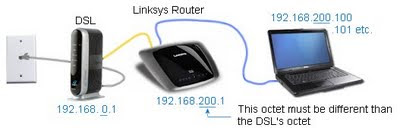


    Consider putting your DSL and Wireless router on a small UPS.  It will protect this equipment from being fried or losing their configuration during a power-failure.  After having several devices fry, I expect this will save money and time.


    Your DSL router setup is complete.


    LED Status Details and Debugging:

    The vendor's online documentation (which may not be helpful when you can't get on the internet) has a good debugging and diagnostics section at the back of the manual.  See this link:  NetGear Product Documentation.  Below is a summary, showing normal and abnormal indicators.

    Power LED 
    Solid Red -Modem is initializing
    Solid Green - Power on  (normal state)
    If Red at other times, turn off the power, wait 1 minute, then power back on to see if the modem recovers.  If this continues to fail, reset the modem to factory default (reset pin-hole button, see instructions above) and re-do the steps in this article.

    Ethernet LED:
    Solid Green - Devices connected (normal state)
    Blinking Green - Devices active (normal state)

    If Ethernet light is off, this indicates a problem with the yellow-cable connection.  Confirm the downstream PC or wireless router is connected.  Check the cable connections.

    DSL LED  [Icon looks like this:  )00(   ]
    Off - No DSL signal
    Solid Green - DSL signal (normal state)
    Blinking Green - Initializing on power up.

    If the DSL LED continues to blink, confirm the data-line to the DSL modem does not have a filter installed.  If this still fails, disconnect all land-line phone devices in the house, including other phones, caller-ID boxes, answering machines, TIVO or Satellite boxes, home security systems.  Reboot the router and test again.  If the LED goes solid green, you are probably missing a DSL line filter on one of those devices.

    If the DSL LED is off, confirm DSL line filters (see step immediately above).  If you have multiple phone lines, confirm you connected to the correct circuit.  It may be necessary to swap DSL signals on pins 1 and 4 on the RJ-11 jack.  Contact your ISP for instructions.  Be aware this DSL modem uses pins 2 and 3 for its signal.

    If the DSL LED continues to be problematic, consider whether your curcuit is an ADSL (older, but common) or a newer VDSL.  The two types are incompatible and an ADSL modem will not work on a VDSL circuit.  You will have to contact your ISP to find out which you have.

    "VDSL is prevalent in Europe.  In the US, Century Link has deployed in Denver, Fort Collins, Omaha, Phoenix, Flagstaff, Seattle, Boise, Albuquerque, St George/Salt Lake City, UT, Portland, OR, Fargo, ND, and the St. Paul/Minneapolis areas, ....  plus Columbia, MO and Las Vegas, NV for its IPTV service. They are upgrading their existing service in La Crosse, WI in 2010."  Source: Wikipedia article 2012

    If this does not resolve the problem, contact your ISP and ask them to test the line.  This may also indicate a poor-quality or damaged line in your house.


    Internet LED [Icon looks like ?i]
    Off - No internet connection - likely an ISP problem or bad ISP password
    Solid Green - Internet detected (normal state)
    Blinking Green - Internet activity (normal state)

    If the Internet LED is red, the device can see the DSL signal but cannot connect to the Internet.  Verify your DSL Login credentials; the password is case-sensitive and usually contains upper-cased letters.  Check with your ISP to see if the advanced settings "VPI and VCI" are set correctly, per their recommendations.  This may indicate the ISP is having technical problems.


    DSLReports.com speed test:

    Of interest, I am running on a 7mbs aDSL circuit (upgradeable to 12).  DSLreports.com's line test shows these results in a late-night test from Boise, ID to LA,CA.  

    Speed Test #102812136 by dslreports.com
    Run: 2012-09-27 23:56:18 EST
    Download: 5830 (Kbps)
    Upload: 698 (Kbps)
    In kilobytes per second: 711.7 down 85.3 up
    Tested by server: 55 java
    User: 2 @ dslreports.com
    User's DNS: qwest.net


    Compared to the average of 78 tests from qwest.net:
    * download is 36% better, upload is 32% worse


    Qwest / Century Link has their own DSL speed test, found here:  Qwest DSL Speed Test
    with these results:

    File size transferred : 1.04 MB (1090681 bytes)
    Total time taken      : 1.74 seconds (1739 milliseconds)
    Throughput            : 627.0 KB/sec [Kilobyte-per-second]
                          = 0.63 MB/sec [Megabyte-per-second]
                          = 5016.0 Kbps [Kilobit-per-second]
                          = 5.02 Mbps [Megabit-per-second]


    Neither are scientific tests and are subject to latency and other variable delays.  No circuit will reach its rated throughput -- in other words, I would never expect 7mbs, getting 5.8 is close enough.


    Related articles:
    Linksys EA2700 Wireless Router review
    Linksys EA2700 Wireless Router - First time setup / setting up a home network
    Windows 7 Unidentified Network problem
    Installing an upgraded laptop wireless card
    Wireless printer fails after router upgrade

    Jumat, 14 September 2012

    How to solve internal memory space losing problem on nokia phone

    In nokia phone, sometimes internal memory space begins to discrease without any reason. Applying themes on mobile is the cause of the problem. For solving this problem first restart your phone. Then apply any theme for several times. Check your memory status.

    Kamis, 13 September 2012

    DSL Status Light Blinking

    Problem: The DSL's Modem light is blinking, does not turn steady-green, does not connect properly.

    This is an excerpt from a longer Keyliner article: 
    Installing Netgear DM111PSP ADSL2 Modem

    Netgear DSL modems look like this; other brand modems will behave similarly.

    Power (top icon) = Green
    Ethernet (second icon) =Solid or blinking green
    DSL (third icon) = Green


    If the DSL's DSL LED is blinking and does not authenticate, consider the following


    Likely solution:

    DSL LED 
    Off - No DSL signal
    Solid Green - DSL signal (normal state)
    Blinking Green - Initializing on power up.


    First, confirm the DSL login credentials, typed in the DSL's configuration screen, are correct.  You will find this in your first-time setup papers for the DSL circuit.  This is not a user-id/password that you type very often.  If you do not have this, call your ISP.


    If the DSL LED continues to blink, confirm the data-line to the DSL modem does not have a filter installed.  If the filters check out okay, disconnect all land-line phone devices in the house, including other phones, caller-ID boxes, answering machines, TIVO or Satellite boxes, home security systems.  Reboot the router and test again.  If the LED goes solid green, you are probably missing a DSL line filter on one of those devices.

    If the DSL LED is off, confirm DSL line filters (see step immediately above). 
    If you have multiple phone lines, confirm you connected to the correct circuit.  It may be necessary to swap DSL signals on pins 1 and 4 on the RJ-11 jack.  Contact your ISP for instructions.  Be aware this DSL modem uses pins 2 and 3 for its signal.

    If this does not resolve the problem, contact your ISP and ask them to test the line.  This may also indicate a poor-quality or damaged line in your house.


    Related article:
    Installing Netgear DM111PSP ADSL2 Modem

    Sabtu, 08 September 2012

    Aggressive McAfee Security Scan Plus

    What is it McAfee Security Scan Plus?

    It is legitimate vendor's product, but it is really an advertising program and it will do no favors and should be un-installed.  This article describes what the program does and how you got it installed.  It may explain system instabilities on your computer.

    Before describing what this program does, it is easier to explain what it does not:  Amazingly, it does not scan files for viruses or protect your system.  Instead, it monitors already running processes and will inform you if a virus was found.  It does nothing to preempt the virus.  It does nothing to protect your computer or your data.  It will not tell you what files were infected nor will it clean your system.

    From McAffe's website, "(McAfee Security Scan Plus) Alerts direct customer to McAfee offerings if antivirus software, firewall protection or web security is out-of-date or not found.  Offers also appear for users who are protected but may want to consider other security software products."

    In other words, it is an advertising program. 
    This is pure, unadulterated junk masquerading in a fancy name.  It should be un-installed.  I cannot be any firmer.  And, as you will see below, it can also cause browser problems.


    McAfee is aggressively advertising this program and if you allow it to install, it will encourage you to buy their full-fledged product. While this program is not a virus, it is acting like one.


    How did you get it?

    The web is awash with people commenting they did not know where the software came from. Sadly, it is being installed by venerated companies, such as Adobe and Sun Java, among others.  The software comes as a payload, attached to other popular programs and it installs almost surreptitiously as part of other software.


    Adobe Flash Player Install:  Shame

    For example, Adobe Flash Player (and its updates) installs the program on the unsuspecting with a default "Yes" install.  Note the subtle checkbox a few steps into the installation process:


    Similarly, Oracle/Sun Java threatens to install McAfee's product with this prompt, right at the moment you are tempted to click "next":


    In other words, if you unexpectedly have this software, it is because you allowed it to install!  Money and other kickbacks must be involved because why else would these companies do this?

    My daughter caught her copy on her school's website, again with a default opt-in "Yes" being checked.  She clicked yes to install other, unrelated software, and got more than was hoped. 


    A Default YES is a Sin!

    Vendors hocking this software with a default opt-in (yes-install-me-when-you-don't-expect-it) is a disservice to these company's customers and is a disservice to hard-working, already-protected computers everywhere.  This is  reprehensible and shameful behavior.  Be sure to complain and fight back.  If the default were "No", this would not be as big of an issue and you would not be reading this article. 


    Does it cause problems:  It can.

    While McAfee claims the program can run along-side other virus scanners, my experience shows otherwise. Consider my daughter's laptop: Both IE and Firefox were crashing several times per hour.  The most recent change:  McAfee Security Scan Plus.  Having two virus scanners (McAfee and Microsoft Security Essentials MSE) running on the same computer is never a good idea.  Uninstall McAfee and this will fix the problem.

    Past experience with McAfee's commercial and retail products has been poor.  Especially in the retail market, I found McAfee's products to be bloated and cause more problems than they solve -- and this despite the awards bestowed by trade magazines.  McAfee mercilessly pesters for paid renewals and many were set to auto-deduct from checking accounts with no recourse to stop the charges.  Behaviors like these, along with default installs, have not endeared me to their products. Symantec has not been much better.

    More often-than-not, I found un-installing McAfees and Symantec's Virus scanners dramatically improved the machine's performance.  To un-install, open the control panel's "Programs and Features" (or XP's Add-Remove programs).  Virus scanners are still a necessary evil.  When you are done removing McAfee's software, install Microsoft's free Security Essentials.

    Update:
    I found a variety of other website reviewing Mcafee Security Scan Plus.  Of the 30 reviews, none were more than two stars -- and the two star review was a cursory article where they clearly did not research the program.  Here are sample reader comments, which I thought were funny.  Most used one or more exclamation points!!!

    • bloatware, junkware, whatever. It should be a crime to auto-install this junk. It does nothing for you, and takes up resources.
    • Latest Java update installs this bloatware!
    • Crapware - Any company that does piggyback installs shows a true lack of concern for the user - For a "security" company to use these tactics should be criminal
    • How do I give this no stars?! First it's McAfee which is bad. Second it's bloatware. And third it detects even less than a full install of McAfee.
    • Doesn't do a whole lot except consume system resources, Definitely pass on it.
       

    This article was originally published earlier this year, but was re-written and shortened to be more forceful in describing this program's behavior.  Frankenstein graphics added to give a little color to such a dreary subject.


    Related Links:
    Keyliner Review: Microsoft Security Essentials


    Minggu, 02 September 2012

    How to download Youtube vidoes on mobile or computer

    I will share a simple method to download any video from Youtube on mobile or computer. First go to www.youtube.com and click on the video you want to download. Then just add ss after www. or after m. in the URL address bar. Go to the edited address URL and click download. Suppose the URL address of your desired vidoe is www.youtube.com/example , edit the address URL to www.ssyoutube.com/example.

    Selasa, 28 Agustus 2012

    HTC One X Review

    HTC One X - Review:  A non-technical, personal review of AT&T's newest phone.  Everyone who buys a phone loves it and they will brag.  I am no exception, but the phone does have a few minor problems.

    I recently upgraded my boring old cell phone to a new HTC One X (HOX) smart phone running on an ATT plan - also known as the HTC Evo 4G LTE on T-Mobile/Sprint.  You can find technical reviews in dozens of other places on the web; what follows here are my observations.


    This is an aesthetically pleasing phone that is remarkably thin with sculpted, smooth edges.  Everyone, without exception, has commented about how attractive this phone is.  It is a pleasure to look at, a pleasure to hold and the features are generally well-designed.  But what really stands out is the large 4.7-inch 1280x720 LCD screen.  The screen is stunning.  The colors are beautiful, bright, smooth and sharp.  This new screen size appears to be the new standard on a variety of other branded phones.

    The phone comes in two colors: Apple-iPhone white and dark grey.  I bought the white.  It looks fabulous (thank you Apple for the design and many have confused my phone with an Apple).  But, in retrospect, I should have bought the grey.  The white phone has stained, picking up some color from the leather case I carry it in.  No amount of scrubbing or bleach has been able to clean it.   

    The backside of the phone is glossy and slippery and your fingers would appreciate a little traction.  Some day, with my table-saw set at a low blade-height, I might score a line or two on the backside.

    Cases:

    Speaking of cases, because of its size, I had a difficult time finding a case that would fit.  In the interim, ATT sells a hard-plastic "Candy" shell.  Don't buy these.  The hard plastic offers no real protection when dropped because the impact is transferred directly to the phone.  the salesman said it has a rubberized interior.  Nonsense.  Other cases, such as an Otter case, are good, but bulky.

    Soft-rubber rim-protectors would be ideal, but I've not found any locally.  If you buy these, the phone will not fit any any carrying case. The Seidio Active Case has my attention.  But one problem I have with all wrap-around cases is a ton of money was spent on a sexy, slim phone, only to hide it in a plastic sleeve.  It seems a shame.  Because of this, my phone is naked.  Be sure to buy a Zagg InvisibleShield screen protector.


    Other Observations:

    The phone has dual processors and this means I can download, play music and view webpages at the same time.  The International version has a quad-core, that I understand nails the battery and this is probably the reason ATT decided on the dual-core.  With this, the phone has been smooth in all operations, including multi-tasking and ATT's network can handle this traffic.

    Another interesting feature are the two tiny LED lights embedded in the ear-piece grill.  The Red shows charging status and the green shows un-read messages or missed calls.  The lights are uber-tiny yet surprisingly bright.  It is a cool design.


    Inevitable iPhone Comparisons

    Compared to an iPhone 4s, the One X is 11mm (3/8") wider
    and 19mm (3/4") longer. Both have a similar thickness.  The One X is 10g (a few ounces) lighter.


    The iPhone will feel more substantial and the metal trim gives it a polished look. As usual, Apple exudes quality and the One X does not reach that level.  But despite the hard-plastic case, the One X does not feel cheap.  With its curved sides, it has an organic feel and it rests comfortably in the hand.  By comparison, the iPhone feels blocky and industrial.

    The real difference is the screen size.  The One X has a 4.7-inch 1280x720 LCD that is a 16x9 DVD movie size and offers more real estate than the iPhone 4s:


    iPhone users will complain the One X is too large to hold.  Nonsense.  The width difference is minor (11mm, 3/8") but admittedly, the length is noticeable.  When holding to your ear, the phone (and its mic, along the bottom edge) will seem strangely long when compared to lesser phones.  However, in practice, this is a first impression that fades with familiarity and the size of the phone is a benefit.


    Software:

    The phone ships with Android ICS 4.03 and HTC has announced a future upgrade to JellyBean 4.1.

    It also comes with an HTC-branded skin, "Sense," with its trade-marked clock on the main screen.  The "Sense" interface has a variety of small navigational enhancements to the base Android operating system but it is maligned by purist and generally liked by normal people.  With this iteration the skin is closer to the standard Android design.  Since this is my first smart phone, I can't make a first-person comparison, but I have liked the interface and have no complaints.  All functions are understandable and it does not take a user's manual to operate the phone.


    The Android operating system has a slick notification bar, which shows all inbound text messages, missed phone calls, software updates, etc.  A simple swipe exposes all kinds of uncluttered, easy-to-understand notices.  It is easy and convenient and has been one of the most pleasurable feature on the phone. 

    See this vendor link for a list of interesting gestures the phone supports.  For example, while on a call, flip the phone onto its face to turn on the speaker-phone.  If you flip the phone face-down on an incoming call, it silences the speaker.  Two-finger scrolling in the address book jumps you by alphabetic A,B,C.  And, the keyboard natively supports swipe.


    Problems:

    The phone does not come with a micro-SD card-slot.  This is survivable provided you have a USB cable and a computer near by. Being an Android, the file system is exposed and moving things to and from this hand-held computer is easy, needing only Windows Explorer.


    My biggest fear is the non-user-replaceable battery.  Following Apple's lead, weight and capacity was saved by theoretically molding the battery into the phone, but from the photograph above, it looks like a fairly normal battery, but in this case, the motherboard has to be removed in order to replace it.  I understand the reasons for this - there does not need to be a sealed compartment to hold the battery, saving weight and thickness and the connector can be anywhere on the motherboard, but a year from now, when the battery is dead, I'll not be happy.  This bridge has yet to be crossed.

    Link: Tech Republic Tear-Down of the HTC One X

    Compared to my BOCF (Boring Old Cell Fone), an endemic problem with all smart phones is the battery life.  With moderate use, expect about a day to a day-and-a-half before charging.  In practice, you will be feeding your phone nightly.  Fortunately, it uses a standard micro-USB connector and you probably have three or four spare chargers at your house already from an old Kindle or another phone.  Take one to the office, just in case.  You'll need one for the car too.


    Crapware:

    The software shipped by HTC and ATT is troublesome.  The phone comes with Twitter, Facebook, and a variety of ATT utilities, such as a Code Scanner, Family-GPS tracking, HTC Hub, and a commercial music program called MOG. If you don't use these programs, tough; they cannot be uninstalled.  Even worse, they pop into memory at the most unexpected times and each wants an update or patch several times a week. I spend more time than I would like maintaining the phone and the apps consume resources.

    The phone comes with an unnamed stock browser, which is surprising, considering this is essentially a Google product that should ship with Chrome.  The default browser is easily replaced with Chrome (or Firefox).  Unfortunately, you can't uninstall the old browser.

    An oddity with Android operating systems is a disturbing inability to close a program.  Programs linger around in RAM until their space is needed by someone else and the OS decides to toss the oldest.  This is irritating to someone who knows they are done with a program and wants to clean up the mess.  In the phone's defense, the self-cleanup works properly and transparently.  But I still feel compelled to launch the task manager and kill them.  Call it an obsession.

    MOG (the commercial music player that comes with the phone) is always surreptitiously launching itself and hiding out in RAM.  You would never know it was even loaded, unless you were obsessed with looking at the task manager.  At some risk I could Root the phone, void the warranty, and remove these applications, but this is too dangerous and I am too new to the platform to be confident.  I wish Google would hear everyone's plea and allow us to remove this junk.

    OS and Other Phone Weaknesses:

    Newer cell phones have a feature called Near Field Communications.  NFC has been around for years as a point-of-sale technique, but is not yet popular. With this phone, two people could be in their address book; bump the phones together and the contact information will upload to the other phone.  Both parties are given the opportunity to accept the transaction.

    It is slick idea, but only works sporadically, especially on older phones.  I suspect both phones have to have the same version of the address book and perhaps the same Android OS and oddly, the feature does not work in the photo album.  It would be nice to transfer pictures, movies, calendar entries, notes and music.  This still needs to mature.

    The photo album does not have a way to mark photos (for later printing), nor does there seem to be an obvious way to rename files.  On the plus side, it is easy to tag the photos for emailing or uploading to GDrive.

    The Voice dialer doesn't.  Well, at least, not well enough to be reliable, yet many other reviews have liked this feature.  I'll continue to work with this and would like to hear your experiences.


    Finally, the Music Play program has some bugs - especially when trying to play locally-stored music.  Google is aware of them and they appear to be trying to stomp them out.  In the mean time, in Settings, Apps, clearing cache, seems to fix the problem and missing albums return to the directory.

    Play Store:

    The Android App Store ("Play Store") has been good and it only took a few minutes to find a slew of interesting programs.  Android has a vibrant development community.  Installs were painless and I have been pleased with the process. 

    But the app store is flawed because almost every program is "free" -- provided you don't mind pestering advertisements to or don't mind having half of the features stripped unless you pay.  They need a more nuanced way to categorize programs.  I suggest "free" for truly free software, "adv" for advertising-supported, and "demo" for reduced features or other limited versions.  If it has a dollar-amount, demo could be assumed until paid.  In the mean time, the best you can do is download each and uninstall when the advertising becomes unbearable.  Alternately, you can read 750 reviews in order to ferret out what you need to know.  Android software deserves a separate article sometime in the future.


    Conclusions:

    I like this phone and I like the style.  The speed and capabilities have been a nice change from my older cell phone.  Although I have not owned an iPhone, I suspect this phone meets and exceeds Apple's products. It appears to me the Android market has matured.

    The phone is $100 with a 2-year contract (there is no way the phone is worth the $500 non-contract retail price).  The way my wife put this:  What are the odds we will change carriers in the next two years?  Sign the contract.  We have had a lot of fun with these devices.


    Related articles and links:
    Keyliner Recommended Apps!
    HTC Vendor Blog
    Slash-dot Review
    TechReadar Review
    Plantronics Bluetooth Headset Review